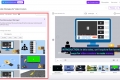
Master Your Coding Interviews with Final Round AI's Coding Interview Copilot
Are you preparing for coding interviews and looking for a tool to guide you through the process? Look no further than Final Round AI's Coding Interview Copilot. This powerful Chrome extension is designed to assist you in acing your coding interviews by providing valuable guidance and solutions. In this tutorial, we will explore the features and usage of Final Round AI's Coding Interview Copilot, ensuring you are well-prepared for your next coding challenge.

Getting Started:
Before diving into the tutorial, make sure you have the latest version of Google Chrome browser installed. To begin, head over to the Chrome WebStore and download the Final Round AI Chrome extension. Once installed, you will see a gray box indicating that the extension is waiting to connect with the Interview Copilot.

Creating a Copilot Session:
To start using the Coding Interview Copilot, you need to set up a copilot session. Begin by creating a goal for your interview and uploading your resume. Select your coding language of choice for the interview and click on "Create" to proceed. Once you have set up your copilot session, click on "Launch" to begin your interview copilot session.

Using the Coding Interview Copilot:
Once your copilot session is launched, ensure that your audio settings are properly configured. You will see a check mark in the center of the gray box of the extension, indicating that it is ready to use. To solve a coding question using the extension, navigate to the Chrome tab where the question is displayed and click on the extension icon.

Capturing and Sharing the Question:
The extension captures a screenshot of the current screen and shares it with the Interview Copilot. Make sure the entire coding question is visible on the screen. After clicking on the extension, it will turn yellow, indicating that the question is being sent to the Interview Copilot. If needed, you can take additional screenshots by clicking on the extension, but keep in mind that this may delay the response.
Working with the Interview Copilot:
Once the extension turns green, it means that the Interview Copilot is working on the coding question. Return to the Interview Copilot page, and the support will appear momentarily. The Interview Copilot is designed to guide you through the entire process, including the idea, code walkthrough, and test cases sections. In the code section, you will find coding solutions, while the walkthrough section provides a step-by-step explanation of the coding question and solution. The test cases section offers test cases for the coding questions.
Completing the Interview:
After you have completed the interview, click on the "X" on the upper right-hand side to exit the Interview Copilot. Keep in mind that the extension has a cool-down period after each response, which lasts for 3 minutes. During this time, the extension will display a waiting sign, and you will need to wait before triggering the solver again.
Conclusion:
Congratulations! You are now equipped with the knowledge of how to use Final Round AI's Coding Interview Copilot to enhance your coding interview preparation. With this powerful tool by your side, you can confidently tackle coding questions, receive expert guidance, and improve your chances of success in coding interviews. Good luck with your future interviews, and remember, Final Round AI's technical support team is always available to assist you with any questions or concerns you may have.