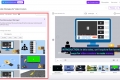
Unlock Your Creativity with Canva AI: Create Your Own Talking Avatar
In this exciting tutorial, we will guide you step by step on how to create your very own talking avatar using free Canva AI. Whether you're a technical expert or a general reader, this comprehensive blog post will show you how to bring your virtual persona to life. Stay tuned as we explore the incredible world of talking avatars and unlock your creativity like never before.

Step 1: Create an Account
To get started, go to the Canva dashboard and click on the "Video" option. From there, click on "Apps" on the left side and search for "HeyGen." Open HeyGen in a new tab and search for "temp mail." Choose any temporary mail provider and copy the email address. Go back to Canva, click on "Sign in or sign up," and select "Sign up with email." Paste the temporary mail address and click "Send code." Retrieve the code from the temp mail website and enter it in Canva. Finally, set a password and click "Done."

Step 2: Create Your Talking Avatar
Now that you have an account, it's time to create your talking avatar. You can choose from a variety of pre-made avatars or upload your own image. Once you've selected your avatar, choose the view mode and background color. Next, type your script or upload an audio file. Canva AI also allows you to choose a voice that suits your avatar. When you're ready, click on "Generate AI video" to bring your avatar to life.

Step 3: Editing Your Video
Once the video processing is complete, click on the "Add to design" button to start editing. If you're using the free version of Canva, you won't be able to remove the video background. However, we have a video tutorial on how to use Canva Pro for free (link in the description). To enhance your video, you can adjust the video lighting, color, and other settings.

Step 4: Design Your Video
If you want to add design elements to your video, go to the "Design" section in Canva. Select a design template and add your avatar to it. Customize the text, text color, effects, and other design elements to make your video truly unique.
Bonus Tip: Using HeyGen for Free
After creating an account on HeyGen via Gmail, you'll receive a credit of one minute duration, allowing you to create a one-minute video or two 30-second videos. However, to continue using HeyGen for free, follow these steps: click on "Make another video," go to "Apps," click on the three dots, and remove HeyGen. Then, go to "Discover" and search for HeyGen again. Sign in or sign up with email using a new temporary mail address. By repeating this process, you can use HeyGen for free for a lifetime.
Conclusion:
Thank you for joining us on this journey into the incredible world of talking avatars created with Canva AI. We hope this tutorial has inspired you to unleash your creativity and personalize your online presence. Don't forget to like and share this video with your fellow creators, and subscribe to our channel for more exciting content. Remember, with Canva AI, your imagination is the only limit. Keep creating, innovating, and being awesome! We can't wait to see what you come up with. See you in the next video!