

What is GitHub Copilot CLI?
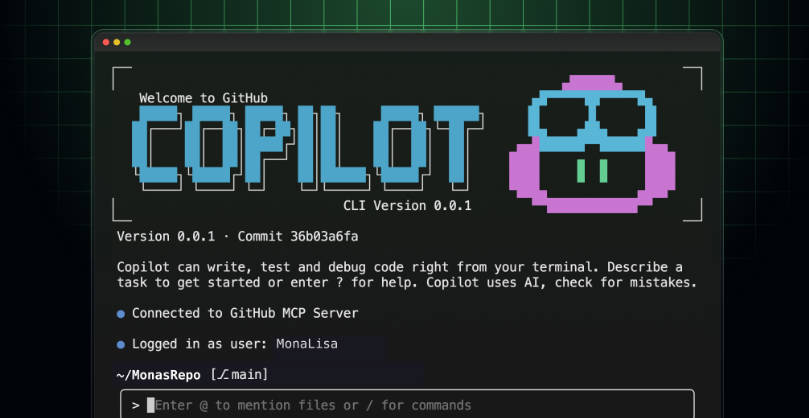
The GitHub Copilot CLI integrates the power of the Copilot coding agent directly into your terminal environment. Designed for professional developers and engineers, this feature eliminates disruptive context switching by allowing you to write, debug, and manage code, Git operations, and complex interactions with GitHub.com using natural language commands right where your work happens.
You gain quick access to a powerful, iterative AI agent that performs tasks on your behalf, significantly accelerating your workflows without ever requiring you to leave the command line.
Key Features
The Copilot CLI transforms your terminal into an intelligent workspace, offering two distinct modes of operation and deep integration capabilities.
🤖 Dual Interaction Modes
You can engage with the Copilot CLI in two powerful ways, supporting both iterative development and streamlined scripting:
Interactive Mode: Start a conversational session using the simple
copilotcommand. This default mode allows you to prompt the AI to perform tasks, ask questions, and react iteratively to Copilot’s responses within the same session, making debugging and complex task building highly fluid.Programmatic Mode: For automation and scripting, pass a single prompt directly to the CLI using the
-por--promptoption. This enables you to pipe commands or execute immediate, non-interactive tasks, which is ideal for integration into larger scripts or headless operations.
⚙️ Seamless Local Task Automation
The CLI acts directly on your local project files and environment, enabling immediate modifications and analysis based on natural language instructions.
Code and File Modification: Ask Copilot to make specific changes to project files (e.g., "Change the background-color of H1 headings to dark blue" in the relevant CSS file).
Git Operation Management: Perform complex or multi-step Git tasks effortlessly. Use prompts like "Commit the changes to this repo" or "Revert the last commit, leaving the changes unstaged," allowing you to focus on the code rather than command syntax.
Debugging and Improvement: Request specific code improvements, documentation rewrites, or have Copilot analyze a recent change that isn't working as expected, providing immediate, context-aware fixes.
🌐 Deep GitHub.com Workflow Integration
Beyond local code, the Copilot CLI connects directly to GitHub.com, allowing you to manage repository tasks without switching to a browser or separate utility.
Pull Request and Issue Management: Ask Copilot to "List my open PRs" or "I've been assigned this issue: [URL]. Start working on this for me in a suitably named branch."
Automated PR Creation: Instruct the CLI to make file changes locally and immediately raise a pull request on GitHub.com on your behalf, marking you as the author (e.g., "In the root of this repo, add a Node script called user-info.js... Create a pull request to add this file to the repo on GitHub.").
Workflow Generation and Review: Create new GitHub Actions workflows from scratch or ask Copilot to review the changes in a specific PR and "Report any serious errors you find in these changes."
Use Cases
The GitHub Copilot CLI is designed to accelerate common development bottlenecks, allowing you to move faster from idea to deployment.
Rapid Proof-of-Concept Generation: Instead of manually setting up new projects, you can direct Copilot to generate complex structures immediately. For example, you can prompt the CLI to: "Use the create-next-app kit and tailwind CSS to create a next.js app. The app should be a dashboard built with data from the GitHub API. It should track build success rate, average build duration, and automated test pass rate. After creating the app, give me easy to follow instructions on how to build, run, and view the app in my browser."
Streamlined Code Review and Remediation: When reviewing an existing repository or fixing a bug, you can use the CLI to quickly analyze file history or identify problems in external contributions. You can ask: "Show me the last 5 changes made to the CHANGELOG.md file. Who changed the file, when, and give a brief summary of the changes they made." Or, "Check the changes made in PR [URL]. Report any serious errors you find in these changes."
Automating Complex Deployment Tasks: For repetitive or complex operations, the programmatic mode excels. You can define specific tool permissions and then execute a complex chain of commands in a single prompt, such as:
copilot -p "Revert the last commit and then run the project's build script" --allow-tool 'shell(git)' --allow-tool 'shell(npm)'.
Why Choose GitHub Copilot CLI?
The Copilot CLI offers a distinct advantage by merging the power of generative AI with the security and efficiency required for professional development environments.
Unprecedented Control and Safety
Unlike general-purpose AI tools, the Copilot CLI is built with granular security controls specific to code execution:
Trusted Directories: When launching a session, you are prompted to confirm that you trust the current directory. This mechanism prevents Copilot from inadvertently accessing or modifying sensitive files outside of your designated project scope, mitigating risks associated with executing commands in unknown locations.
Granular Tool Approval: When Copilot needs to use a tool that could modify or execute a file (e.g.,
rm,node,sed), it prompts you for approval. You can approve the tool for a single use, for the entire session, or deny it and ask Copilot to try a different approach. This ensures you maintain control over destructive or sensitive commands.Flexible Tool Scoping: For advanced users, command-line options like
--allow-tool 'shell(git push)'or--deny-tool 'shell(rm)'allow you to precisely scope which shell commands Copilot can execute automatically, balancing speed with security requirements.
Advanced Model Flexibility
The Copilot CLI provides access to powerful, premium models, ensuring high-quality, relevant results for complex development tasks. The default model is Claude Sonnet 4, and Claude Sonnet 4.5 is also available in recent versions. You can easily switch the model used for your session via the /model slash command, allowing you to leverage the latest AI capabilities tailored to your specific needs.
Conclusion
GitHub Copilot CLI is an essential tool for accelerating productivity and maintaining flow within the terminal. By integrating a powerful, context-aware AI agent directly into your command line, you can execute code changes, manage Git history, and interact with GitHub.com using natural language, all while retaining essential security controls.
Explore how the GitHub Copilot CLI can transform your terminal workflow and deliver code faster.
More information on GitHub Copilot CLI
Launched
Pricing Model
Free
Starting Price
Global Rank
Follow
Month Visit
<5k
Tech used
GitHub Copilot CLI was manually vetted by our editorial team and was first featured on 2025-11-03.
GitHub Copilot CLI Alternatives
Load more Alternatives-

Programmers can work more effectively with GitHub Copilot, a tool powered by artificial intelligence
-

Codex CLI: AI-powered code generation, refactoring, & testing directly in your terminal. Safe, controlled, & open source!
-

Claude Code is an agentic coding tool that lives in your terminal, understands your codebase, and helps you code faster by executing routine tasks, explaining complex code, and handling git workflows - all through natural language commands.
-
-

Seamlessly integrate with top AI providers using your own API keys. Experience native interface and unparalleled flexibility in your development workflow.